

 LinkedIn

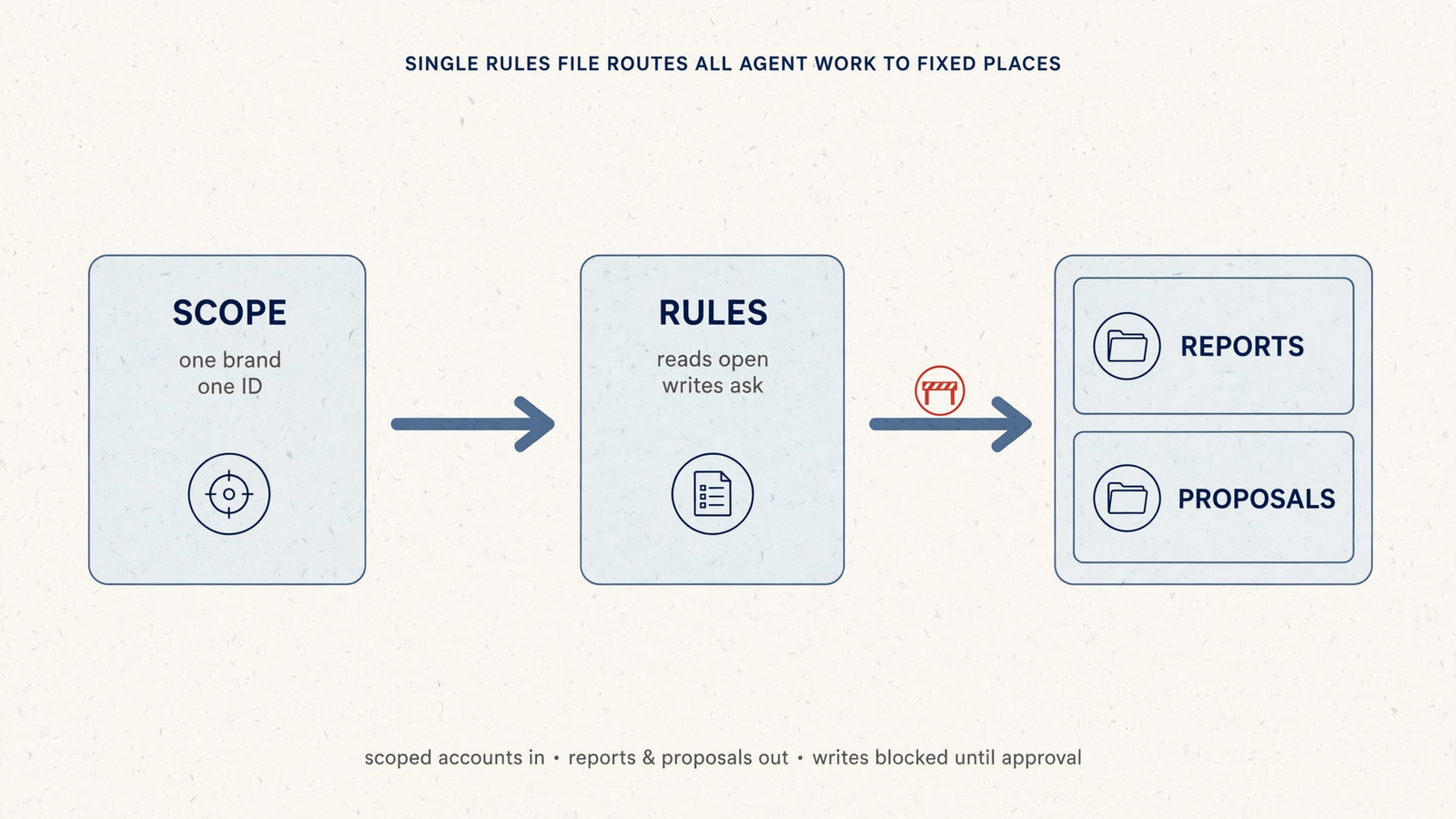
An agent connected to an ad account needs standing orders, not another reminder to “be careful.” I use Cursor’s project rules to specify which accounts it may touch, which groas MCP tools it may call, when it must stop, and where the report belongs.
Rules files were built for coding work. The same structure fits marketing work over MCP: a defined scope, a permitted tool set, and an output someone can review. The important limit: rules instruct the agent; they do not replace tool permissions or approval controls. A sentence saying “never change budgets” is not an access restriction.
By the end, you will have .cursor/rules/marketing-orders.mdc, fixed report and proposal paths, and a read-only test that checks the workflow before you approve a change.
Before starting, have:
- Cursor with Agent mode available.
- groas connected through
mcp.json, with the agent able to read your ad data. - One Google Ads or Meta account for the first read-only test.
- That account’s exact ID and access to Cursor’s MCP approval controls.
If the connection is not ready, follow the Cursor and groas setup walkthrough first. Then return here. Connecting the tools and deciding how they may be used are separate jobs.
1. Create an always-applied project rule
Create .cursor/rules/marketing-orders.mdc in your project root. Use Cursor’s documented project-rule format and location, rather than dropping a loose Markdown note somewhere in the repository and hoping the agent finds it.
Paste this starting block:
---
description: Scope and approval rules for marketing work via groas MCP
alwaysApply: true
---

## Marketing standing orders
These instructions apply to every marketing task in this project.
They do not grant tool permissions or replace execution approvals.
Open Cursor Settings > Rules and confirm that marketing-orders appears as an always-applied rule. Reload the window if needed. Cursor supports different rule-loading modes; this workflow uses alwaysApply: true so its instructions do not depend on which file happens to be open.
Expected result: the Rules pane shows the file as always applied. Do not treat the agent saying “I read the rules” as your only check.
Common mistake: using the wrong extension or relying on a rule that only attaches in particular circumstances. Check the path, extension, and loading mode before rewriting the instructions.
Keep the file short. Cursor recommends rules under 500 lines and references to supporting files rather than pasted copies of everything. Standing orders should be readable enough that you will actually review them.
2. Scope the run to exact account IDs
Add the following block. Replace the bracketed brand and example IDs with your own. If you only need Google Ads, remove the Meta entry; do not leave an example account in the finished file.
### Scope
- Allowed brand: [Acme Outdoor]
- Allowed accounts: `123-456-7890` (Google Ads), `act_987654` (Meta).
- Use one explicitly identified account per run and per report.
- Default read window: last 28 days unless the prompt specifies otherwise.
- If the requested account ID is not listed, stop and ask.
- If the prompt does not identify one allowed account, ask which account to use.
- Never substitute another account or combine brands in a report.
Then ask the agent:
Which account IDs are allowed by this project's marketing rules?
Do not call any tools.
Expected result: it repeats your listed IDs and makes no tool calls. This checks whether it has the scope instructions, not whether access is technically restricted to those accounts.
Common mistake: listing brand names without IDs. Names are useful labels. They are not the identifier to trust when two accounts look similar.
For multi-client work, keep each project folder scoped to one client. That is the useful part of running multiple accounts through Cursor and groas: one working environment, without turning every report into an account-selection exercise.
Make the account explicit before the first data pull. A correct analysis of the wrong account is still the wrong deliverable.
3. Allow-list actual MCP tools, not promising-looking prefixes
Inspect the MCP servers and tools available in Cursor. Check both .cursor/mcp.json and ~/.cursor/mcp.json: Cursor supports project and global MCP configuration. Do not assume that a minimal project file means no other servers are available.
For this workflow, leave only the needed groas tools available where your configuration allows it. Then inspect their descriptions and copy the exact names of the read tools you intend to use.
Add this block, replacing the bracketed instruction with those names:
### Allowed tools
- For marketing tasks, use MCP server `groas` only.
- Approved read tools: [replace with exact tool names reviewed in Cursor].
- Do not infer permission from a tool name or prefix.
- Any unlisted tool requires review before use.
- Any tool that creates, edits, pauses, or changes budgets or bids is a write tool.
- Write tools require the proposal and approval process below.
Do not leave the placeholder in place and start a run. A prefix such as get_* is convenient shorthand, but it is not a substitute for reviewing what the exposed tool does.
Test the instructions:
List the exact MCP tools permitted for this marketing task.
Separate approved read tools from tools that would require approval.
Do not call any tools.
Expected result: the answer matches your reviewed list. It does not treat every tool on the groas server as automatically approved.
Common mistake: leaving a server available from another project, then assuming the rules file disabled it. A written allow-list is an instruction, not a server switch. Use configuration to limit availability and rules to explain the workflow.
Keep the list narrow enough to inspect. More tools are not useful if nobody can tell which ones the agent should call.
4. Require a proposal before any ad change
Add the approval block below. Then open Cursor Settings > Agents > Approvals & Execution and review the available execution controls alongside Cursor’s MCP approval guidance.
Keep approval prompts enabled for write-capable tools. Do not use Run Everything for this workflow. If your controls cannot distinguish reads from writes, keep the broader approval requirement rather than relaxing it to match the convenience of the rules file.

### Approval rules
- Approved reads may proceed subject to Cursor's execution controls.
- Never execute an ad-account write without explicit human approval.
- First write a proposal to `proposals/YYYY-MM-DD-change.md`.
- Include account ID, campaign, old value > new value, reason, and rollback step.
- Stop after writing the proposal. Do not execute its changes in the same turn.
- Wait for a human message containing `APPROVED` and the proposal's exact path.
- Approval covers only the change described in that file.
- A different change or an edited proposal needs fresh approval.
- New campaigns must be created PAUSED. Activation requires separate approval.
Now test the boundary with your scoped account and a named test campaign:
Propose lowering the daily budget on my test campaign to $30.
Write the proposal to the required folder, then stop.
Do not execute any ad-account change.
Expected result: the agent writes a proposal and stops. It may need approved read calls to identify the campaign and current budget. It must not call a write tool.
Common mistake: assuming an automatic review mode knows which business decision you would approve. Execution controls and business approval answer different questions. Keep both.
The file is the point. It puts the account, campaign, and exact change somewhere you can inspect before anything happens. Approve the proposal, not the agent’s confidence.
5. Give every report and proposal a fixed home
Create reports/ and proposals/ in the project root. Add this block:
### Where work goes
- Reports: `reports/YYYY-MM-DD-slug.md`.
- Proposals: `proposals/YYYY-MM-DD-change.md`.
- Replace YYYY-MM-DD with the run date.
- Start every file with account ID, date window, and tool calls made.
- Reports include spend, CPA/ROAS where applicable, and top 5 movers.
- Proposals include campaign, old value > new value, reason, and rollback step.
- Write one report file per run.
- Reference prior files by path rather than pasting their full contents into chat.
Ask for a report using your actual allowed ID:
Using only approved groas read tools, summarize the last 28 days
for account 123-456-7890. Write one report using the required path
and header. Do not propose or execute any changes.
Expected result: one dated file in reports/, with the account ID, window, and tool-call record at the top. The filename should describe the report, not imply a different reporting period.
Common mistake: letting filenames drift into final-report-v2-new.md. That tells you someone wanted to finish. It tells you very little about the work.
Use Cursor’s file references when bringing previous work into a later request. A stable path gives the next run something concrete to inspect without filling the conversation with copied reports.
If the report exists only in chat, the workflow is not finished. Files give the next review a fixed starting point.
6. Run the read-only acceptance check
Use the following prompt in Agent mode. Replace the example account ID before sending it:
Use only the approved groas read tools for account 123-456-7890.
Read the last 28 days.
Write reports/YYYY-MM-DD-test.md, replacing YYYY-MM-DD with today's date.
Propose one budget change in proposals/YYYY-MM-DD-test.md.
Include the current value, proposed value, reason, and rollback step.
Do not execute the change. Stop after writing both files.
Review the result in this order:
- Check the report header. Confirm the account ID and date window match the request.
- Inspect the actual tool calls in the Agent pane. Confirm they used the approved groas reads and that zero write calls ran. Do not rely only on the agent’s own tool-call summary.
- Open the proposal. Check the campaign,
old value > new value, reason, and rollback step. - Confirm the stop. The agent should wait, not interpret a completed proposal as permission to execute it.
Expected result: two files in the right folders, no ad-account writes, and a proposal that can be reviewed without reconstructing the conversation.
Common mistake: approving from the chat summary. A neat paragraph can still describe a different campaign from the one in the proposal. Read the file and inspect the tool history.
If the account is wrong or a write call appears, stop. Correct the scope, tool availability, or approval controls before running another test. Do not approve a second action to see whether the first problem repeats.
Starter rules file: fill it in, then keep it with the project
The complete file below brings the steps together. Replace the brand, account IDs, and approved read-tool list. Remove accounts you do not need. Create reports/ and proposals/ before the first test.
Do not run this template with placeholders still inside it. The useful part is the specific scope you supply, not the existence of a file called standing orders.
---
description: Scope and approval rules for marketing work via groas MCP
alwaysApply: true
---

## Marketing standing orders
These instructions do not grant permissions or replace execution approvals.

### Scope
- Allowed brand: [replace with brand].
- Allowed accounts: [replace with exact account IDs and platforms].
- One explicitly identified account per run and report. Never combine brands.
- Default window: last 28 days unless the prompt specifies otherwise.
- If the account is missing or not listed, stop and ask. Never substitute.

### Allowed tools
- Marketing MCP server: `groas` only.
- Approved read tools: [replace with exact reviewed tool names].
- Do not infer permission from prefixes. Unlisted tools require review.
- Creates, edits, pauses, budget changes, and bid changes are writes.
- Writes require the approval process below.

### Approval rules
- Approved reads remain subject to Cursor's execution controls.
- Never execute an ad-account write without explicit human approval.
- First write `proposals/YYYY-MM-DD-change.md`.
- Include account, campaign, old value > new value, reason, and rollback.
- Stop after proposing. Do not execute changes in the same turn.
- Wait for human `APPROVED` plus the proposal's exact path.
- Approval covers only that change. Edited proposals need fresh approval.
- Create new campaigns PAUSED. Activation needs separate approval.

### Where work goes
- Replace YYYY-MM-DD with the run date.
- Reports: `reports/YYYY-MM-DD-slug.md`. One report per run.
- Proposals: `proposals/YYYY-MM-DD-change.md`.
- Every file starts with account ID, date window, and tool calls made.
- Reports include spend, CPA/ROAS where applicable, and top 5 movers.
- Reference prior files by path; do not paste their full contents into chat.
If the project uses Git, stage the completed rule file:
git add .cursor/rules/marketing-orders.mdc
Staging is not committing. Review and commit the file through your normal project workflow so the instructions travel with the project.
Verify the setup with Step 6: two files, the correct account, zero write calls, and an always-applied rule in the Rules pane. That checks this run. Keep reviewing later runs; a successful test does not turn instructions into enforcement.
The first thing I would change after that test passes: set the read window to last 7 days for daily checks. A 28-day report is useful context, but it can bury yesterday’s CPA spike. Keep the scope narrow enough to see the decision that needs your attention.


