
 LinkedIn

Claude’s green Connected badge tells me the sign-in worked. It doesn’t tell me Claude can read the Google Ads account I spend from, the Meta account I report on or the GA4 property I actually use. I used to treat a successful sign-in as proof the account was ready. I was wrong. Now I ask for one dated, identifiable read per source, with an explicit status if no data comes back. A failure tells me where setup stopped; it doesn’t clear that source for reporting, and it doesn’t count as zero activity. The five minutes are for reviewing the checklist, not waiting on authorisation.
Before connecting: write down what Claude should read
- Start with the IDs, not the account names. Write down the Google Ads customer ID, the Meta ad account ID and the numeric GA4 property ID you expect Claude to use. A login that can see ten accounts isn’t the same as permission to read the three you need. Keep the names alongside the IDs so you can recognise the results at a glance, then use the IDs to decide whether you got the right ones.
- Confirm your Claude client supports custom connectors over remote MCP. Free users get one custom connector. On Team and Enterprise, an Owner adds it at the organisation level before individual members connect.
- Have a groas subscription ready. It’s $19 a month flat for unlimited teammates, ad accounts and websites, with no free plan. I use it here to run all three checks from one connector. A cheaper setup that leaves one source untested doesn’t pass this checklist.
- Pick fixed start and end dates for all three reads. Don’t write “last week” and let each source decide what that means. GA4 interprets relative dates in the property’s reporting timezone. Ask for the timezone even with fixed dates: I want to know what each source counted as the start and end of the period.
Connect groas, then verify the account list
- Add groas using the current Claude setup instructions, not a server URL from a forum post. In Claude, go to Customize → Connectors, choose the add option, name the connector groas and paste the URL from the setup page. Leave the detected sign-in options as they are, then select Add → Connect and sign in. On Team or Enterprise, an Owner adds it first under Organization settings → Connectors → Add → Custom → Web.
- Authorise the intended Google Ads customer through groas and record its 10-digit ID without hyphens. If you access a client account through a manager account, distinguish the client ID from the manager login ID. The client ID tells you whose data you want; the manager login ID belongs on the call. If that login ID is missing and you get a permission error, you haven’t learned anything about campaign activity.
- Authorise the intended Meta ad account through groas and record which account you selected. Don’t treat a completed Meta sign-in as evidence that the intended account is enabled for MCP. Practitioners have reported OAuth succeeding while the intended account showed MCP access as disabled and an empty personal account showed it as enabled. In another report, the disabled reason pointed to a gradual rollout. Reconnecting harder doesn’t resolve an account mismatch.
- Authorise the intended GA4 property through groas and record its numeric property ID from Property Settings in GA Admin. GA4 reporting uses
properties/GA_PROPERTY_ID; a Universal Analytics property won’t work. “Connected to Google” doesn’t identify the property Claude will query. Match the numeric ID, not just the property name. - Before requesting a report, ask Claude to list the accessible accounts and properties by name and ID. Match the list against what you wrote down. Google Ads has a tool for listing accessible customers, and Meta’s account listing fields include status, currency and timezone. If the intended account is missing or disabled, don’t let Claude substitute one it can read. A valid table from the wrong account is still the wrong table. An ID match gets you to the test read; it isn’t the test read.
- Reuse the same fixed date range for all three reads and require the reporting timezone and, where applicable, currency alongside each result. Ask for those details in the answer, not just in the request. If a figure doesn’t match the platform, check the dates, timezone and currency Claude actually returned before you run the report again.
Pull one small table from each source
- Google Ads: request spend and conversions for the specified customer ID and fixed dates. Keep it to two metrics so you can compare the output with Google Ads without wading through a 40-column export. If the call fails, keep the error. One developer reported a 19.8% failure rate across 313 raw Google Ads GAQL calls in 30 days, including calls with unavailable fields and calls missing a manager login ID. That’s not a groas benchmark. It’s a reason to read the error before retrying: changing the fields won’t fix a missing manager login ID.
- Meta: request spend and results for the specified ad account and the same dates. Require Claude to name the result type or optimisation event. “Results” on its own doesn’t tell you what was counted. If the table has a number but no definition, it’s unfinished. Don’t read it as a low result or compare it with Google Ads conversions as if the column labels settle the question.
- GA4: request sessions and key events for the specified property and the same dates. The GA4 MCP guide lists property details and reporting tools on a read-only route. The GA4 Data API MCP endpoint also offers a compatibility check for requested metrics and dimensions. If the query is the problem, fix the query before drawing conclusions about traffic. A report that never ran doesn’t tell you the property had none.
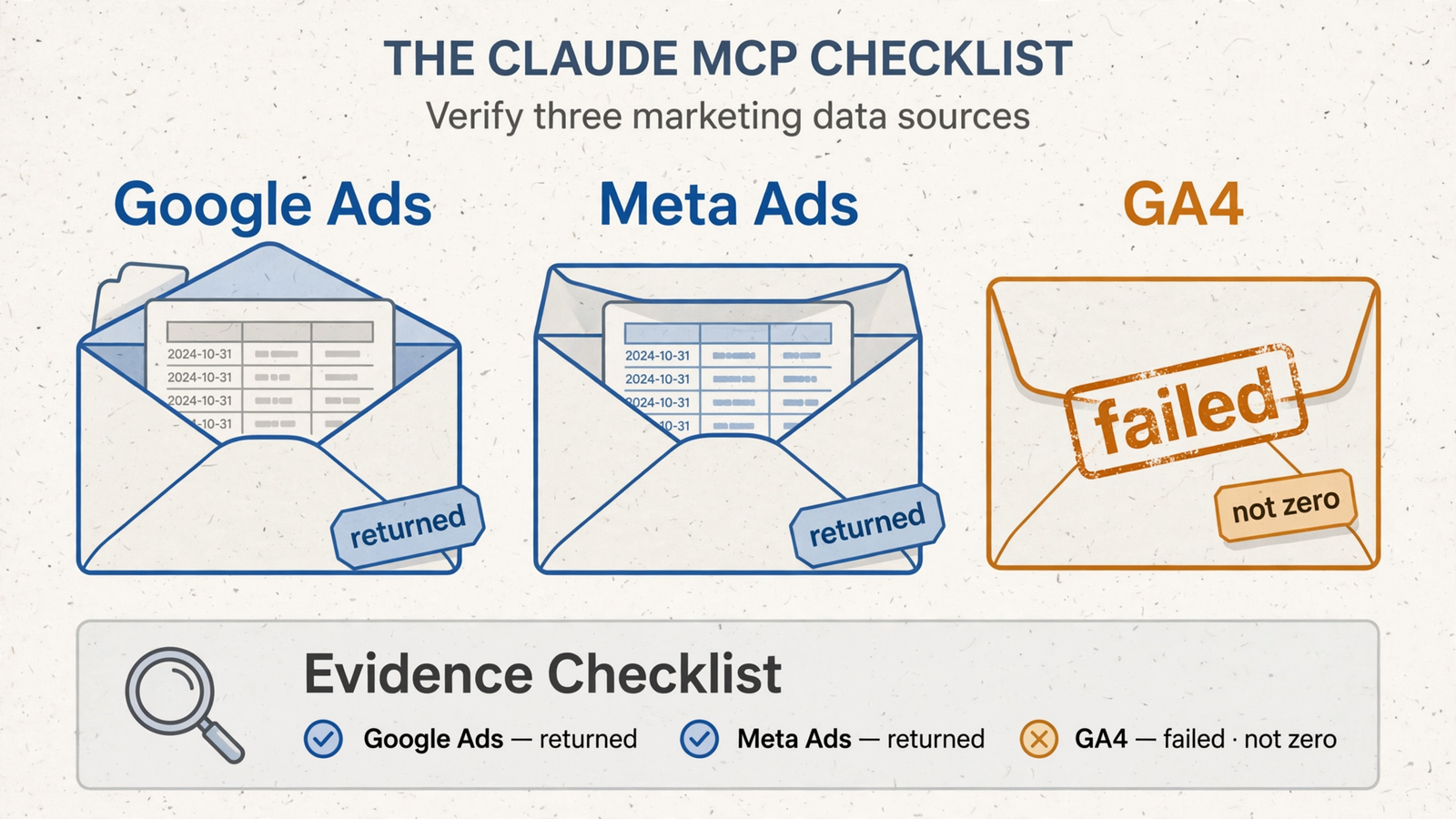
- Give each source one explicit status: returned, empty, unauthorised or failed. Put it next to the account or property ID, not in a footnote. Returned means the source sent dated rows. Empty means the source answered for that ID and date range but sent no rows. Unauthorised means the source refused access. Failed means the call didn’t complete. None of the last three statuses supplies a number. If a returned row actually contains a zero, keep it. If there’s no row, keep the status instead.
- Check one returned figure against the source using the same dates, timezone and currency where applicable. If it’s a Meta result, check that you’re looking at the same result type and attribution setting before blaming the connector. A matching figure is a useful spot check, not proof that the other two sources work. If it doesn’t match, resolve the discrepancy before relying on that table.
Paste this read-only check into Claude
- Fill in the dates, names and IDs before you paste. Run this check before asking Claude to compare performance or explain what changed.
Using groas, verify these sources for [start date] through [end date]: Google Ads [name and customer ID], Meta [name and ad account ID], and GA4 [name and numeric property ID]. First list the accessible accounts and properties by name and ID. Use only the IDs I supplied; do not substitute another account or property.
For Google Ads, return spend and conversions. For Meta, return spend and results and name the result type or optimisation event. For GA4, return sessions and key events. For each source, include the account or property ID, date range, reporting timezone, currency where applicable, retrieval time, metric definitions and status: returned, empty, unauthorised or failed. If a requested detail isn’t available, say so rather than guessing.
Do not change anything. Label partial results explicitly and include the exact error for any refused or failed read. Do not fill in missing figures with zeros.
- Keep the evidence next to the numbers. The ID tells you what Claude read. The date range and timezone tell you what period it covered. The retrieval time tells you when the read happened. The metric definition tells you what the number counts. Copy those details with the table. Otherwise, the next person to check the number has to reconstruct which account, dates and settings produced it.
- Use groas for the shared workflow, not a shared verdict. The platform-specific connector routes aren’t a single setup for Google Ads, Meta and GA4. I’d use groas in Claude here because I can ask for all three checks in one place. I still want three answers. The connector is shared; the account IDs, permissions and results aren’t.
Stop the combined report if a read fails
- Save the exact error and the ID it applies to. “Permission denied” on a Google Ads manager-account call and “permission denied” on a GA4 property can look identical in a summary. The first can point to a missing manager login ID. The second can point to missing Viewer access on the property. Keep the wording and the ID together so you know which one to check.
- Check the connection, the service account and the source’s permission or account-type requirements before retrying. That’s the sequence I’d take from Claude’s connector troubleshooting. If the problem is one account’s permissions, a second successful sign-in doesn’t clear it. Once you’ve addressed the error, rerun the same small read with the same ID, dates and metrics. You’re checking whether that read now works, not whether a different query can return something.

- Don’t publish two live reads and a silent failure as a three-source report. Label the report partial and name the missing source beside the results, where the reader will see it. If Meta couldn’t be read, say that; don’t leave the reader to infer that Meta had no activity. A missing answer can look like a drop in performance. That’s how someone ends up cutting a budget, pausing a campaign or killing a creative that was never the problem.
Make the readiness call before asking for analysis
- Require one evidence row per source. For a successful read, I want the account or property name and ID, dates, timezone, metric definitions and retrieval time. A dated empty response from the intended source is evidence the read worked, not permission to fill a table with invented zeros. An unauthorised or failed row tells me where to stop. Neither clears that source for reporting, no matter how polished the other two tables look.
- The step I see skipped most: list the accessible accounts and properties before asking for a report. It feels like paperwork when you already know which account you use every day. But a connector can be signed in while the intended account is unavailable, and an empty account can sail through in its place. Skip the list and you’ll spend more than five minutes reconciling numbers from an account you never meant to read. Do the list first. Then ask for the tables. Then ask Claude what it thinks.